
Email Spam Checker & Phishing Detector

Paste the email body as you received it, including headings, bullet points, links, and formatting. Then add the sender email address and, if you know it, the attachment name. The checker looks for phishing signals like mismatched sender domains, urgency pressure, fake brand claims, dangerous file extensions, suspicious links, payment requests, password or OTP requests, and more.

Want a manual checklist too? Read how to identify spam, phishing, or genuine email. And after scanning a suspicious message, it also helps to read how to protect your email account from hackers.

Email Analyzer

Disclaimer: This result is an estimate based on the text, links, sender address, and optional attachment name you provide. It is useful for screening suspicious emails, but you should still verify anything related to money, hosting, domains, banking, crypto, accounts, invoices, passwords, or one-time codes through the official website.
Enter the real sender address shown by your mail app. This gives a much better result.
This checks the filename and extension only. It does not scan the real attachment bytes.
Tip: You can paste directly from Gmail, Outlook, Apple Mail, Yahoo Mail, or another mailbox. Basic formatting will stay intact.

How This Email Spam Checker Works

This page checks visible signs inside the email you pasted. It reviews the sender domain, wording, links, and whether the message appears to pretend to be a known company while coming from another domain.

It also checks for fake urgency, account warning language, password or OTP requests, payment pressure, refund tricks, dangerous attachment extensions, shortened links, raw IP links, visible link mismatches, and other common phishing patterns.

If your server endpoint is enabled, it can also ask your own mail filter for a stronger live score, which helps a lot more than browser-only guessing.

How to Check the Real Sender Email Address (Optional but recommended)

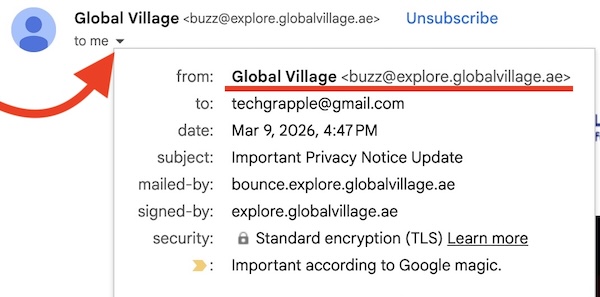
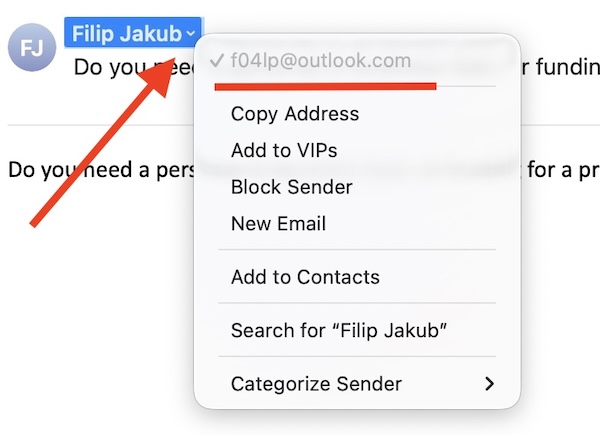
Many fake emails show a friendly display name that looks normal, while the real sender address is different underneath. Before checking the message here, try to reveal the actual sender email.

How to reveal the real sender email address in Gmail

Gmail: open the suspicious email, click the sender name or the small arrow/dropdown area near the sender details, and look for the full email address shown underneath.

How to reveal the real sender email address in Apple Mail

Apple Mail on Mac: open the message, click the sender details or address area, and reveal the full sender information. The same idea usually works in other mail apps too.

In Outlook, Yahoo Mail, Proton Mail, and most other mail apps, the process is usually very similar: open the message, click the sender details, and reveal the real address instead of trusting only the display name.

Important Note

A low score does not prove an email is safe. A high score does not prove it is definitely malicious. This is still a screening tool. For anything related to hosting, domains, bank accounts, crypto wallets, invoices, deliveries, login codes, or password resets, always verify from the official website.

For more help, read how to identify spam, phishing, or genuine email and how to protect your email account from hackers.